Extract PDF Pages - Save One Page of a PDF
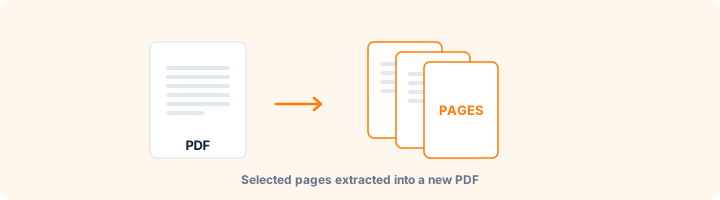
Pull the pages you need into a brand new PDF.
Drop your PDF here
or
PDF files up to 100 MB
How to use Extract PDF Pages
- 1Upload your PDFEvery page appears as a thumbnail you can click.
- 2Select the pages you wantClick the pages to tick them, or type a range like 3,5,8-12 in the box below.
- 3Check the countThe tool shows how many pages you have selected before you commit.
- 4ExtractThe chosen pages become a new PDF, in their original order.
Your files are processed over an encrypted connection and deleted automatically within one hour. Nothing is shared with anyone.
Extract PDF Pages: what to know before you start
Extract versus split
Extract keeps the pages you choose and gives you one new document containing just those. Everything else is discarded from the output, though your original is untouched.
Split cuts the whole document into several files without discarding anything. If you want the useful pages and nothing else, extract. If you want the whole document broken into parts, split.
Selecting pages two ways
Click the thumbnails for a visual selection, or type a range like 3,5,8-12 for speed. Commas separate individual pages, hyphens define spans, and the two can be mixed freely.
Page numbers outside the document are ignored rather than causing an error, and if none of your numbers are valid you get a clear message instead of an empty file.
One file or many
By default the selected pages become one new PDF in their original order. Enable the separate files option in advanced settings to get each page as its own document, delivered as a ZIP - which is what most document management and e-filing systems expect.
Frequently asked questions
How do I save just one page of a PDF?
Upload the PDF, tick the page you want on the thumbnails (or type its number) and press Extract Pages. You get a new PDF containing only that page. The original file is not changed.
Can I do it without uploading the file?
Yes. Open the PDF in Chrome or Edge, press Ctrl+P (Cmd+P on a Mac), choose "Save as PDF" as the printer and type the page number under Pages. That works well for one page; for several scattered pages the thumbnails here are quicker.
What is the difference between Extract and Split?
Extract keeps the pages you pick and gives you one new PDF. Split cuts the whole document into several files without discarding anything.
How do I type a page range?
Use commas for single pages and hyphens for spans, for example 3,5,8-12.
Is the original file changed?
Never. Your uploaded file is left alone and you download a separate new PDF.
Is this tool free?
Yes. Every tool on WorkSathi is free to use with no sign up, no watermark on your result and no daily limit.
What happens to my files?
Files are uploaded over an encrypted connection, processed, and then deleted automatically within one hour. We never open, share or sell your documents.
Does it work on a phone?
Yes. The tools work in any modern browser on Windows, Mac, Android and iOS - there is nothing to install.
Related PDF tools
Split PDF by custom page range (1-5, 8, 11) or every N pages.
Click the pages you do not want and delete them.
Combine invoices, reports, and receipts in custom order.
Fix sideways and upside-down pages in a few clicks.