Document Accessibility Test - Automated + Manual PDF Checklist
Run the automated tests, then tick off the manual checks, for a complete accessibility test you can save and share.
Drop your PDF here
or
PDF files up to 100 MB
How to use Document Accessibility Test
- 1Upload the documentExport it to PDF first if it is a Word, PowerPoint or Google Docs file.
- 2Run the automated testsStructure, text, images, fonts, links, forms and security are checked by software.
- 3Complete the manual checklistRead each human check, test it yourself and tick it off. Your ticks are included in the report.
- 4Save the test reportDownload a dated HTML report with both parts for your records or your client.
Your files are processed over an encrypted connection and deleted automatically within one hour. Nothing is shared with anyone.
Document Accessibility Test: what to know before you start
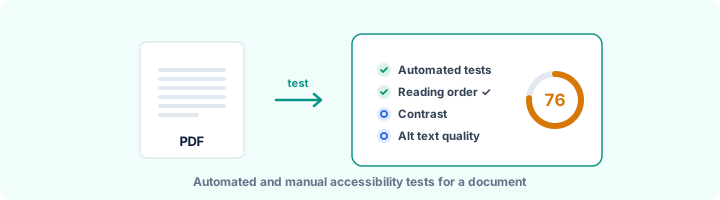
A full test has two parts
Automated testing is fast and consistent, but it can only answer questions like "is there alt text?". It cannot tell you whether the alt text is any good. A complete test pairs the automated checks with a short manual review, and this page does both: the software runs first, then you work through a checklist and tick off each item.
Your ticks go into the downloaded report along with the date, so the report shows which parts were checked by software and which were confirmed by a person.
Doing the manual checks properly
Allow about ten minutes per document:
- Reading order: listen to two or three pages in NVDA or with Acrobat's Read Out Loud. Columns, sidebars and captions are where the order usually goes wrong.
- Alt text: read each description without looking at the picture. Would you know what it shows and why it is there?
- Contrast: check light grey text and any text placed over a photo. Body text needs a ratio of 4.5:1, and any free contrast checker will calculate it from two colour codes.
- Use of colour: look at charts and forms in black and white. If some meaning disappears, it was carried by colour alone.
Testing Word, PowerPoint and Google Docs files
Export the file to PDF with tagging switched on, then test the PDF here. When you find a problem, fix it in the original and export again, because fixes made only in the PDF are lost the next time someone edits the source.
Word and PowerPoint also have their own checker under Review > Check Accessibility. It catches some problems before you export, and it is worth running both.
Frequently asked questions
How do I test a document for accessibility?
In two passes. First an automated test for structure - tags, alt text presence, title, language, labels. Then a manual pass for what software cannot judge: does the reading order make sense, is the alt text useful, is the contrast enough. This page walks you through both.
Can I test Word or PowerPoint files?
Export them to PDF with tagging switched on (Save As > PDF > Options > "Document structure tags for accessibility") and test the PDF. Problems found usually need fixing in the original file.
How should I test reading order?
Open the PDF in a free screen reader such as NVDA, or use Read Out Loud in Acrobat Reader, and listen to a few pages. Columns read across, captions read before their images or tables read cell by cell in the wrong order are reading-order failures.
Is this tool free?
Yes. Every tool on WorkSathi is free to use with no sign up, no watermark on your result and no daily limit.
What happens to my files?
Files are uploaded over an encrypted connection, processed, and then deleted automatically within one hour. We never open, share or sell your documents.
Does it work on a phone?
Yes. The tools work in any modern browser on Windows, Mac, Android and iOS - there is nothing to install.
Related PDF tools
A full accessibility report for any PDF: tagging, alt text, reading structure, fonts, forms and links, with fixes.
See which WCAG success criteria your PDF passes or fails - alt text, titles, language, headings, tables, links and forms.
Check a PDF against PDF/UA-1 rules: tags, alt text, language, fonts, Unicode and tab order, mapped to Matterhorn checkpoints.
Check PDFs on your website against WCAG 2.1 AA, the standard the 2024 ADA Title II rule adopted.