PDF/UA Checker - Test PDF/UA (ISO 14289) Compliance
Check a PDF against PDF/UA-1 rules: tags, alt text, language, fonts, Unicode and tab order, mapped to Matterhorn checkpoints.
Drop your PDF here
or
PDF files up to 100 MB
How to use PDF/UA Checker
- 1Upload the PDFAny PDF up to 100 MB. Password-protected files ask for the password first.
- 2Run the PDF/UA checkThe tag tree, fonts, annotations, metadata and every page of text are inspected against PDF/UA-1.
- 3Read the reportEach rule shows pass, warning or fail with its ISO 14289 clause and Matterhorn checkpoint.
- 4Fix and re-checkFollow the fix under each failed rule, export again and upload the new file to confirm.
Your files are processed over an encrypted connection and deleted automatically within one hour. Nothing is shared with anyone.
PDF/UA Checker: what to know before you start
What PDF/UA is really about
PDF/UA has very little to say about how a page looks. Its concern is the layer underneath: the tag tree. Tags tell a screen reader that a line is a heading, that three lines form a list, that a picture shows a sales chart. Anything that is only decoration, such as a page border or a running footer, has to be marked as an artifact so it gets skipped.
Most of the standard follows from that. Text that is neither tagged nor marked as an artifact gets read out of place, or not at all. A figure without alternate text is silent. A font without a Unicode map can look perfect on screen and still come out as nonsense when a screen reader tries to speak it.
What we check, and how
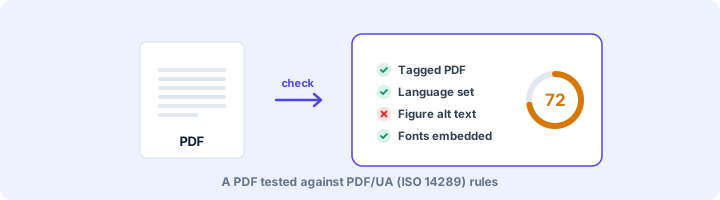
The checker reads the file directly rather than guessing from how it looks. It walks the whole tag tree, follows the RoleMap for custom tags, reads every font dictionary and annotation, and pulls the text from every page to see which characters sit inside tagged content. The rules it covers:
- The file is marked as tagged and has a structure tree.
- Page text is tagged or marked as an artifact. We measure this per character, so a missed footer on page 40 shows up.
- There is a document title, and the viewer is told to show it instead of the file name.
- The default language is set to a valid code such as en-IN or hi-IN.
- Figures and formulas have alternate text.
- Headings exist and do not jump levels, for example from H1 straight to H4.
- Tables have header cells and lists have list items.
- Custom tags map to standard ones.
- Fonts are embedded and have a Unicode mapping.
- Links have descriptions, annotations are tagged, and pages with links or fields use structure tab order.
- Form fields have a tooltip name, and there are no XFA forms.
- Password settings do not block screen readers.
- The XMP metadata declares PDF/UA (pdfuaid:part).
A typical result, and what it means
When we tested a 65-page employee handbook exported from Word 2024, it was tagged properly: over 3,000 tags, a language set, headings, lists and two tables with header rows. It still failed on 1,548 figures with no alternate text. Word tags every decorative shape and icon as a figure unless you mark it as decorative, so a handbook full of small icons fails this rule badly even when the real images are described.
That is a common pattern. Exporting from Word or Google Docs with tagging switched on gets most of the structure right. What is left is usually alt text, the document title, and headings that skip levels because someone picked "Heading 4" for its font size.
What still needs a person
Software can prove a tag tree is present. It cannot tell whether the tags follow the order a reader would expect, or whether "image1" is a useful description. Those items appear under "Needs a human check" in the report.
The quickest manual test is to listen. Open the file in NVDA, which is free on Windows, or use Read Out Loud in Acrobat Reader, and follow along for a couple of pages. If the order would confuse you, it will confuse a screen reader user.
Frequently asked questions
What is PDF/UA?
PDF/UA (Universal Accessibility) is ISO 14289, the international standard for accessible PDF. Part 1 (2012, updated 2014) is based on PDF 1.7; Part 2 (2024) is based on PDF 2.0. It defines how a PDF must be tagged so screen readers and other assistive technology can use it reliably.
Is this a certified PDF/UA validator?
No automated tool can certify PDF/UA on its own, because some rules - logical reading order, meaningful alt text, correct heading text - need a person. This checker runs the machine-testable rules and lists the rest as human checks, the same split the Matterhorn Protocol makes.
What is the Matterhorn Protocol?
A free list of failure conditions published by the PDF Association that turns the PDF/UA standard into testable checks. Each failed rule in the report names its Matterhorn checkpoint so you can look it up or pass it to a developer.
Why does my file fail "PDF/UA identifier"?
PDF/UA files must declare themselves in their XMP metadata (pdfuaid:part). Word, InDesign and Acrobat add it when you export with a PDF/UA option. Fix the other issues first - declaring conformance on a non-conforming file is worse than not declaring it.
Is this tool free?
Yes. Every tool on WorkSathi is free to use with no sign up, no watermark on your result and no daily limit.
What happens to my files?
Files are uploaded over an encrypted connection, processed, and then deleted automatically within one hour. We never open, share or sell your documents.
Does it work on a phone?
Yes. The tools work in any modern browser on Windows, Mac, Android and iOS - there is nothing to install.
Related PDF tools
Pre-flight a PDF for long-term archiving: XMP identification, embedded fonts, output intent, encryption, JavaScript and attachments.
See which WCAG success criteria your PDF passes or fails - alt text, titles, language, headings, tables, links and forms.
A full accessibility report for any PDF: tagging, alt text, reading structure, fonts, forms and links, with fixes.
Check PDFs on your website against WCAG 2.1 AA, the standard the 2024 ADA Title II rule adopted.