Compress PDF to 200KB
Reduce a PDF to 200 KB or less for online job applications and forms.
Drop your PDF here
or
PDF files up to 100 MB
How to use Compress PDF to 200KB
- 1Upload your PDFDrop the file in or tap Select PDF. Multi-page scans and photo-heavy documents shrink the most.
- 2Confirm the 200 KB targetThe common cap on job portals, resume uploads and GATE-style applications. It leaves noticeably more detail than a 100KB limit.
- 3CompressWe re-save losslessly first, then reduce image detail step by step only as far as the target actually requires.
- 4Compare before and afterThe result panel shows the original size, the new size and the exact percentage saved.
Your files are processed over an encrypted connection and deleted automatically within one hour. Nothing is shared with anyone.
Compress PDF to 200KB: what to know before you start
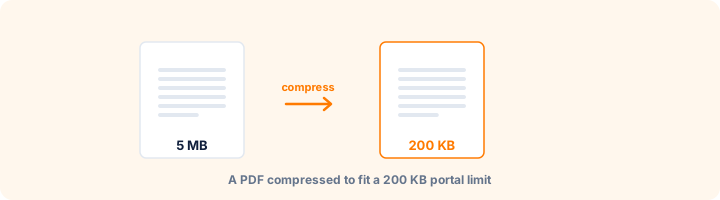
Where the 200 KB limit shows up
Two hundred kilobytes is the common ceiling on private job portals, resume uploads, GATE and similar entrance applications, and many university forms. It is roughly twice the detail budget of a 100 KB cap, and that difference is larger in practice than it sounds.
At 100 KB a scanned signature or department stamp often goes soft. At 200 KB the same scan usually keeps its edges. If the form you are filling allows 200 KB, use it rather than compressing further out of habit.
How the compressor decides
The file is first re-saved losslessly - metadata stripped, objects packed. If that alone clears 200 KB, nothing else happens and the pages are untouched.
Only if the file is still too large does image detail start coming down, one step at a time, stopping the moment the target is met. This matters: a document that was 210 KB is barely altered, while one that was 8 MB is reduced much further. Two files ending at the same size can have had very different amounts of work done to them.
Scanned documents shrink the most
Scans compress dramatically because they are photographs, and photographs carry enormous redundancy. A text-only PDF is already efficient, so there is far less to remove - if your file comes back close to its original size, that is usually the reason rather than a failure.
For scans of black-ink documents, turning on grayscale in the advanced options is close to free: the visible result is nearly identical and the file is meaningfully smaller.
Frequently asked questions
Is 200 KB better than 100 KB?
If the portal allows up to 200 KB, yes. Higher budget preserves maximum document sharpness and scanned clarity.
Does compression change my page count or layout?
No. The number of pages, the page size and the position of everything on the page stay exactly as they were.
Can I compress a scanned document?
Yes, and scans usually shrink the most because they are made of photos. Turning on grayscale saves even more.
Is this tool free?
Yes. Every tool on WorkSathi is free to use with no sign up, no watermark on your result and no daily limit.
What happens to my files?
Files are uploaded over an encrypted connection, processed, and then deleted automatically within one hour. We never open, share or sell your documents.
Does it work on a phone?
Yes. The tools work in any modern browser on Windows, Mac, Android and iOS - there is nothing to install.
Related PDF tools
Shrink a PDF down to 100 KB or less for passport, SSC & exam portal uploads.
Bring a large PDF under 500 KB for scholarship and email attachments.
Get a heavy PDF under 1 MB while keeping high document clarity.
Turn mobile photos of paper documents into clean scanned PDFs.