Password Protect a PDF
Lock confidential bank statements, tax forms, and contracts with AES-256 encryption.
Drop your PDF here
or
PDF files up to 100 MB
How to use Protect PDF
- 1Upload the PDFOne file at a time so nothing gets mixed up.
- 2Set a passwordType it twice. Use the eye icon to check what you typed.
- 3Choose permissionsDecide whether readers may print, copy text or edit the document once they are in.
- 4Protect and downloadThe PDF now asks for the password every time it is opened.
Your files are processed over an encrypted connection and deleted automatically within one hour. Nothing is shared with anyone.
Protect PDF: what to know before you start
Encryption and permissions are not the same thing
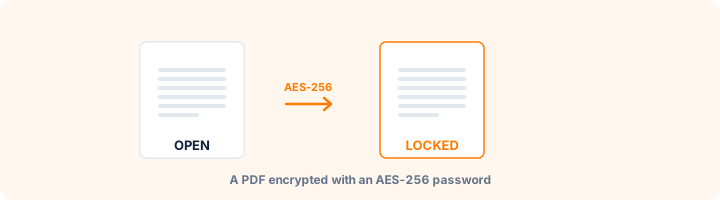
Setting an open password encrypts the document with AES-256. Without the password the file is mathematically unreadable - not hidden, actually unreadable. There is no recovery by us or anyone else.
The printing, copying and editing checkboxes work completely differently. They set flags telling reader software what to allow. Mainstream readers respect them; plenty of tools do not. Treat permissions as a clear instruction, never as a security control.
Choosing an algorithm
AES-256 is the right default and works in every reader made in roughly the last decade. AES-128 exists for older software. RC4-128 has known weaknesses and should only be chosen when a specific legacy system demands it.
Handling the password
Length beats complexity - four random words are stronger and far easier to read over the phone than eight scrambled characters. Store it in a password manager before you send the file, not after.
Never send the password in the same message as the document. If both travel together, the encryption has protected nothing.
What encryption does not cover
It protects the file contents. It does not remove metadata that already identifies you, and it does not remove anything visible on the pages. Clear the metadata and redact sensitive content before encrypting, not after.
Frequently asked questions
How do I lock a PDF from editing?
Set a password and leave "Allow editing" unticked. Anyone opening the file needs the password, and mainstream readers then block editing. This tool always sets an open password; if you want anyone to open the file but not edit it, you need an owner-password-only option, which Acrobat Pro offers.
How strong is the encryption?
AES-256 by default, which is the strongest encryption the PDF standard supports. AES-128 and RC4-128 are there for very old readers.
What if I forget the password?
The file cannot be opened. We never store passwords, so keep yours somewhere safe.
Do permissions really stop people?
They tell the reader software what to allow, and mainstream readers respect that. They are a clear instruction rather than an unbreakable lock.
Is this tool free?
Yes. Every tool on WorkSathi is free to use with no sign up, no watermark on your result and no daily limit.
What happens to my files?
Files are uploaded over an encrypted connection, processed, and then deleted automatically within one hour. We never open, share or sell your documents.
Does it work on a phone?
Yes. The tools work in any modern browser on Windows, Mac, Android and iOS - there is nothing to install.
Related PDF tools
Remove owner passwords and printing restrictions from your PDF files.
Strip author name, creation dates, and hidden details from your PDF before sharing.
Stamp confidential text or logo diagonally across PDF pages.
Draw hand signature, type cursive name, or upload signature image.